Your table, built in three dimensions.
Delve3D turns a D&D session into a living diorama. The DM builds the scenes, players roll on D&D Beyond, and everyone watches it happen in the world.
Run your campaigns
Your Scene Library, campaign modules and every group's playthrough, behind your DM password.
Join your playthrough
Enter the code your DM gave you. You arrive where your party left off, or wherever your DM has sent you.
Each group's playthrough, its join code, and the live table running it.
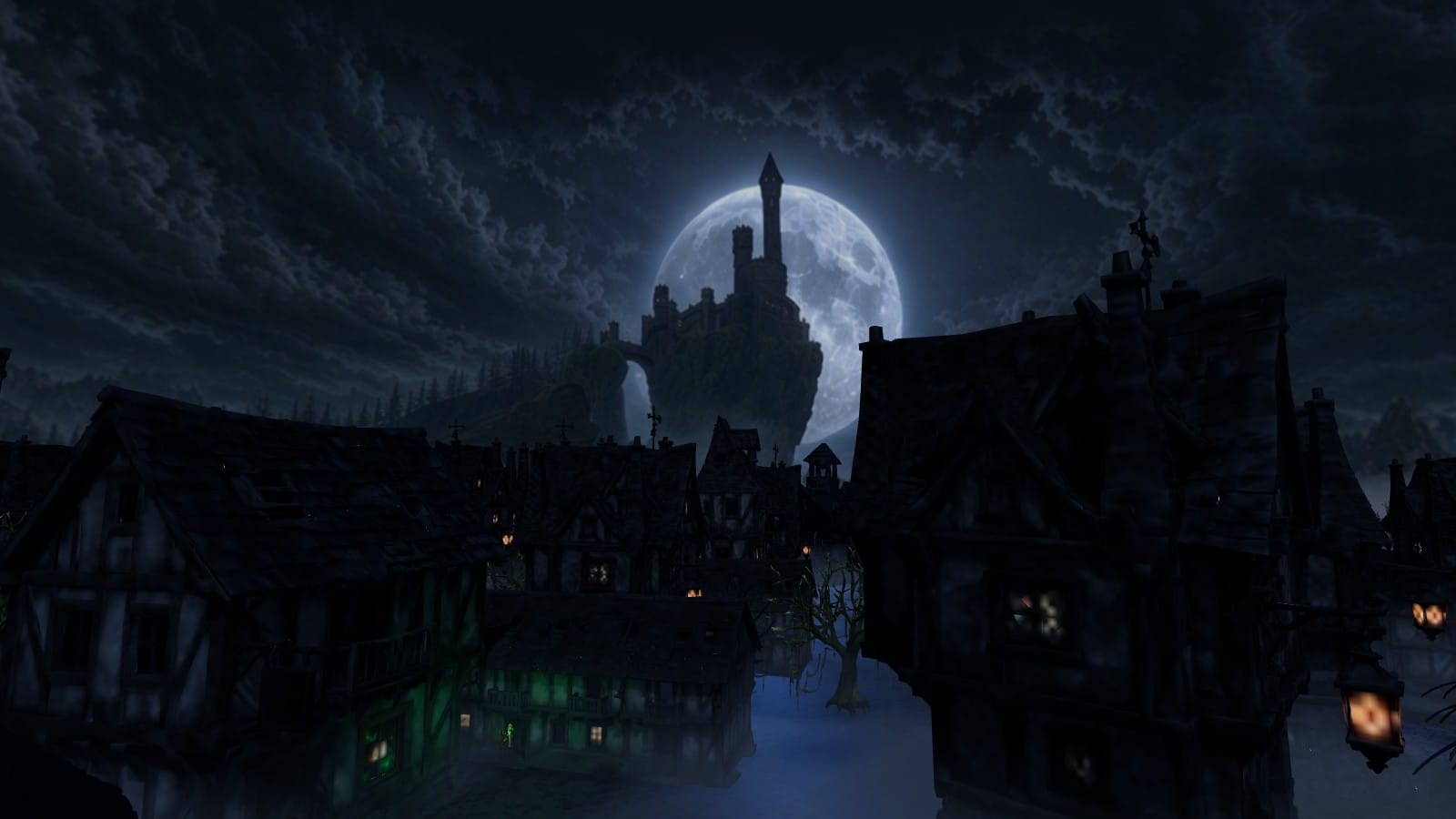
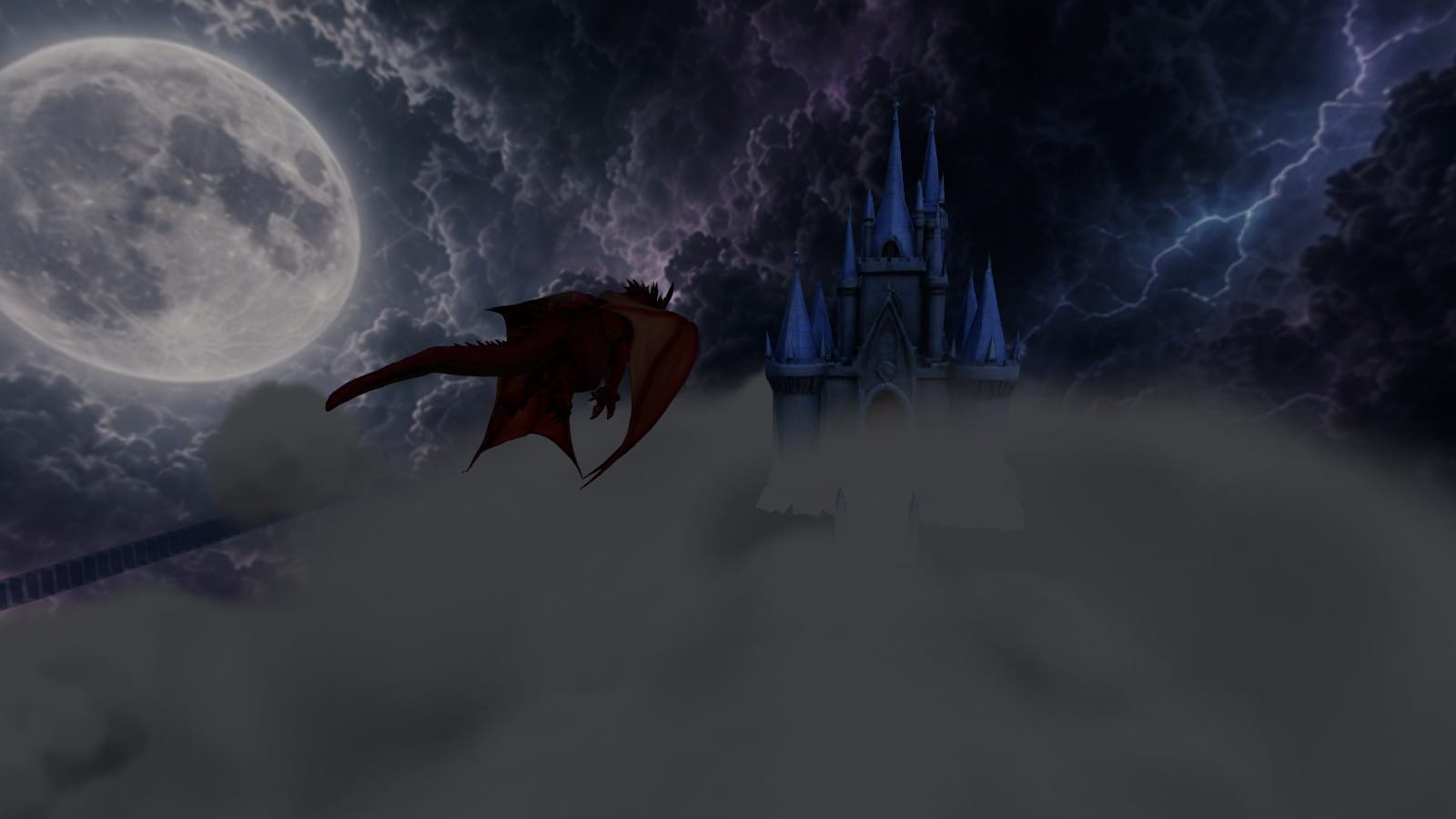
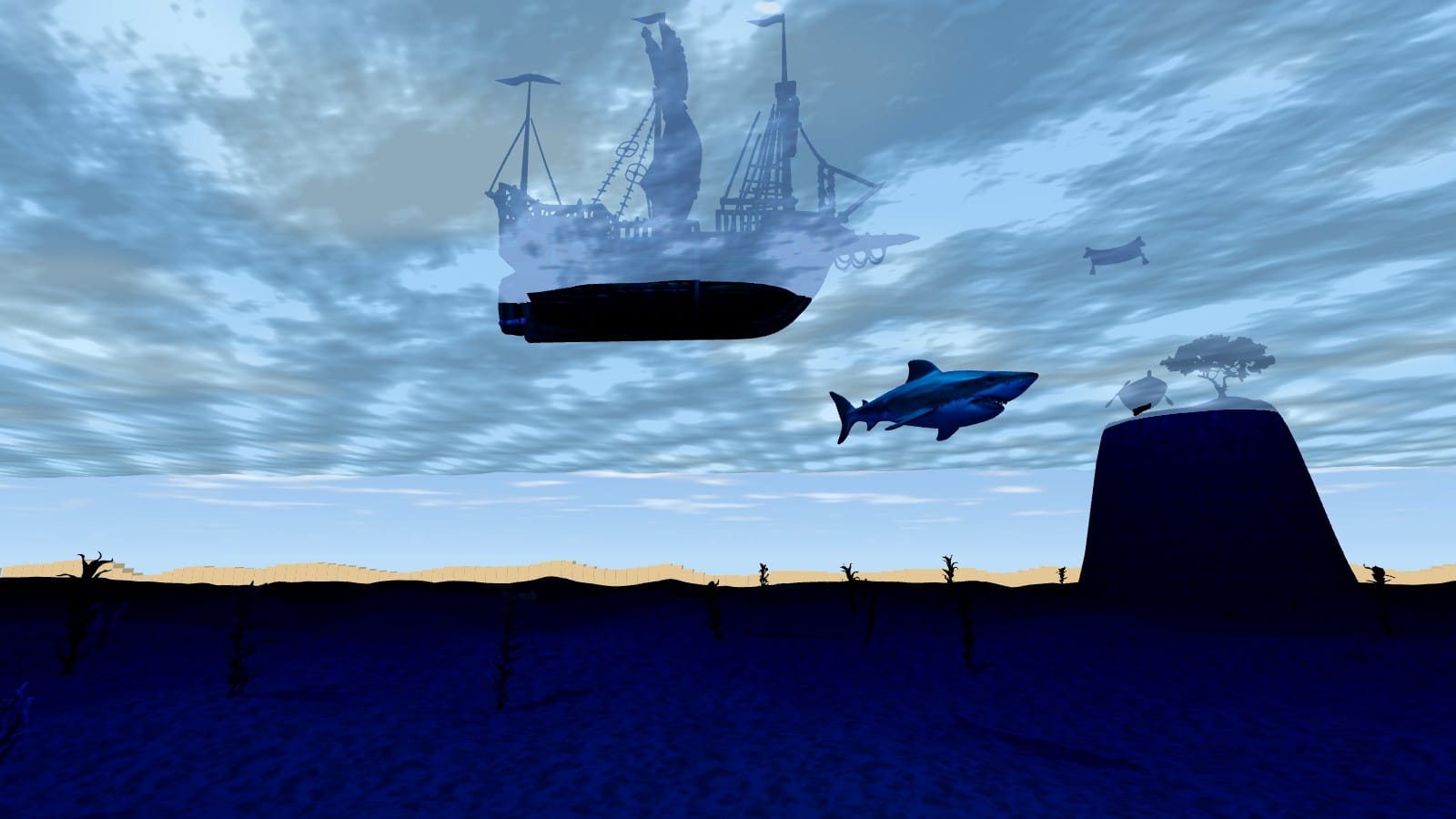
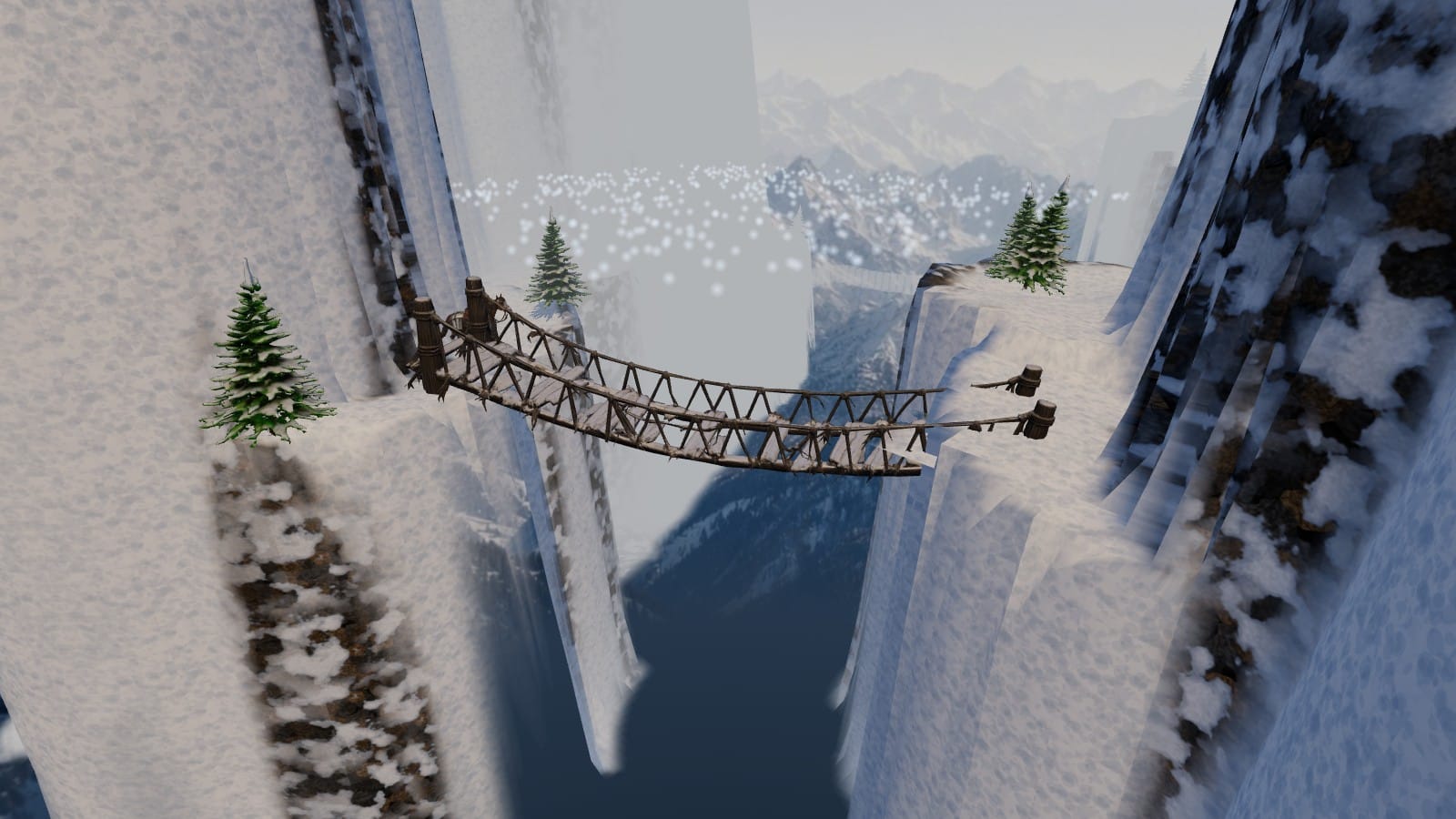
Scenes from the table
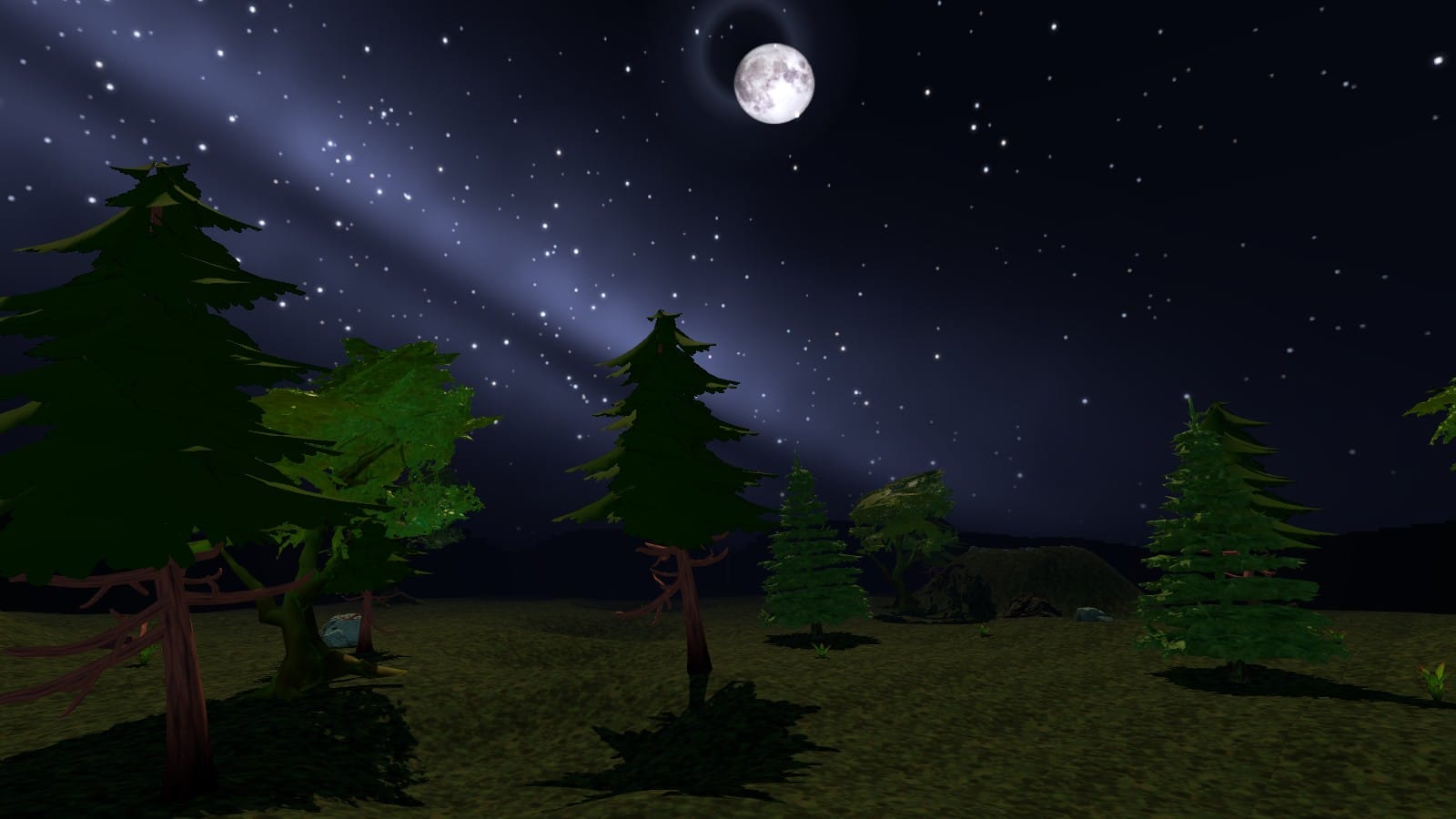
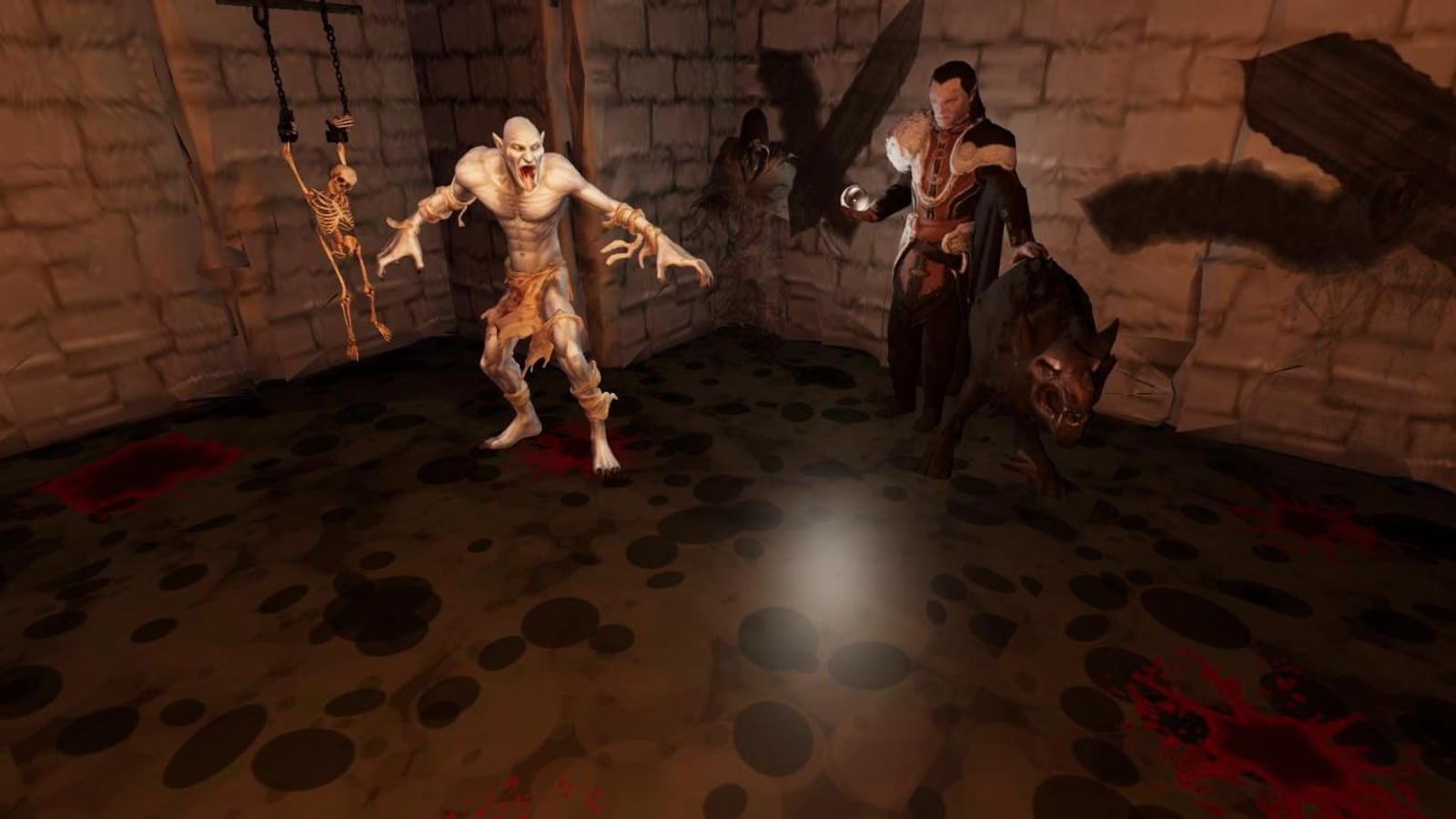
Every picture here is a real Delve3D scene, captured in the game as players see it.
How a campaign comes together
Three layers, each with its own button and colour in the game, so the book version of a scene never gets mixed up with what one group did to it.
Scene Library
Standalone scenes, filed by biome: towns, caves, swamps, skies, etc. Leverage a massive asset library, bestiary and scene generation tools. Then save them for use in your campaigns.
Example: Towns › Vallenmoor VillageCampaign Module
Save collections of your scenes into one campaign module, just like how D&D adventures present themselves. Copy scenes in from the library and arrange them into campaign sections.
Example: Campaign Module: The Crimson Count › Section: Hollowmere Manor › Scene: The CellarsPlaythrough
One group's run through your DM's campaign module. Every scene they visit keeps what they did: moved NPCs, dead monsters, and more.
Example: The Crimson Count, Fall 2026Before your first session
Players must follow four steps in advance of their first session.
Make your hero on D&D Beyond
Build your character sheet, and once you are in your Delve3D session, Delve3D automatically reads your stats and recognizes your rolls!
Install Beyond20
Install Beyond20 so your D&D Beyond rolls connect and land at the Delve3D table.
Let Beyond20 reach Delve3D
Do this once on each browser you play from, so your rolls arrive at the table.
https://delve3d.com/*
- Click the Beyond20 icon in your browser's toolbar and open its Options.
- In the Advanced options, find List of custom domains to load Beyond20.
- Paste the line above on a line of its own and press Apply.
- Accept your browser's permission prompt, then reload Delve3D.
Join with your DM's code
Your DM gives each group a join code for its playthrough. It looks like GRIM-7Q4K.
Type it in the Player box at the top of this page and press Join. You arrive where your party left off, or wherever your DM has sent you.